
User guide
This guide walks you through everything you need to get started with Pacy—from downloading the app to making the most of your AI mentor.
Getting started with Pacy
1. Receive your invitation
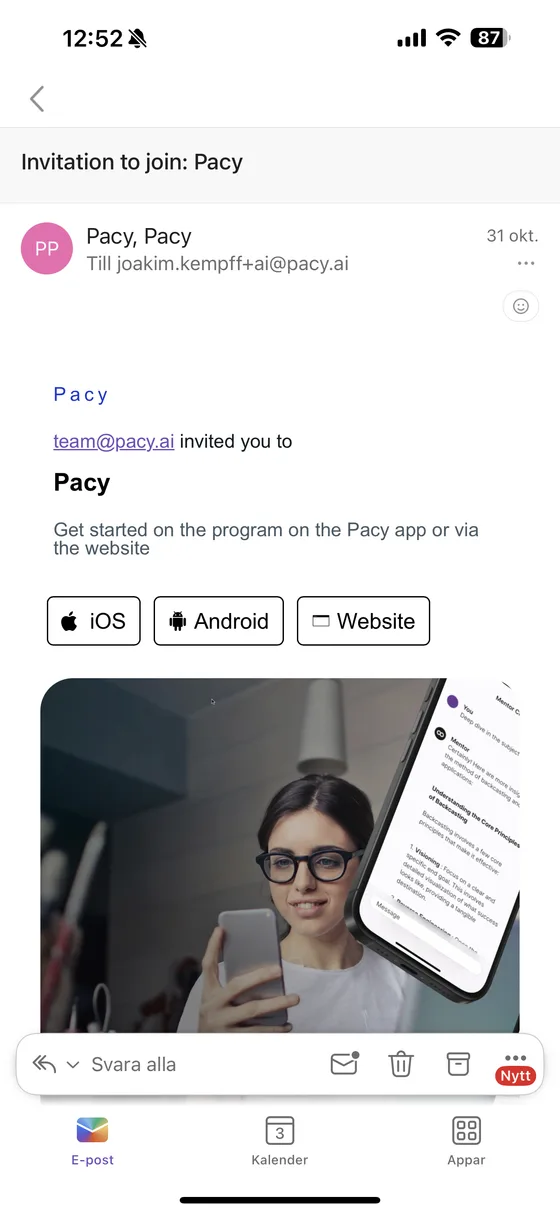
You'll receive an email invitation from team@pacy.ai with the subject line “Invitation to join: Pacy.”
Inside the email, you'll see buttons for:
- iOS (App Store)
- Android (Google Play)
- Website
If you're using a phone, tap the iOS or Android button to download the Pacy app from your app store.
2. Download the app
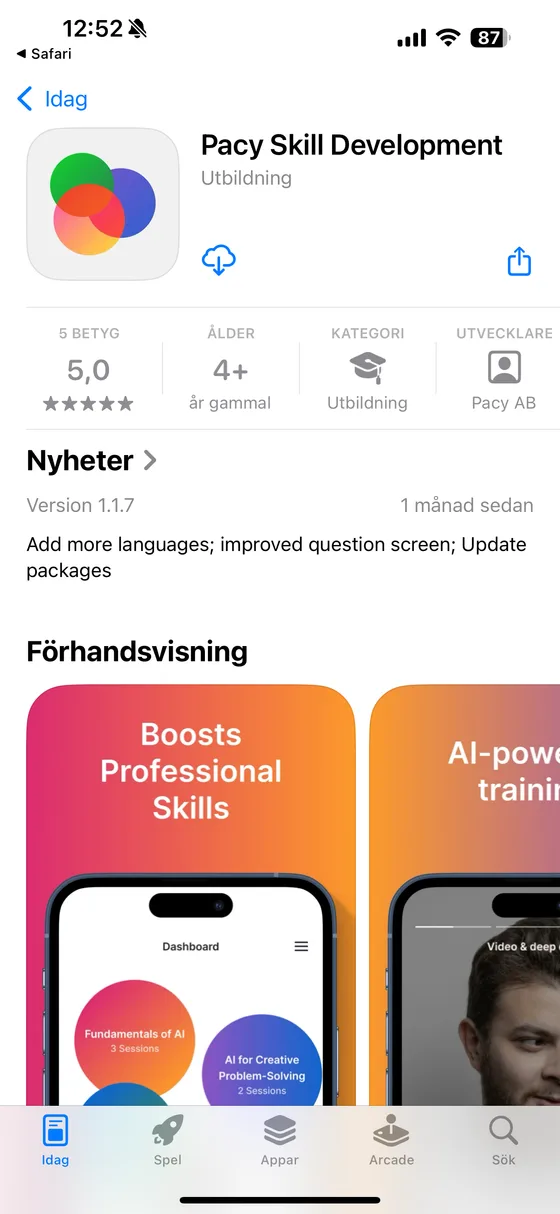
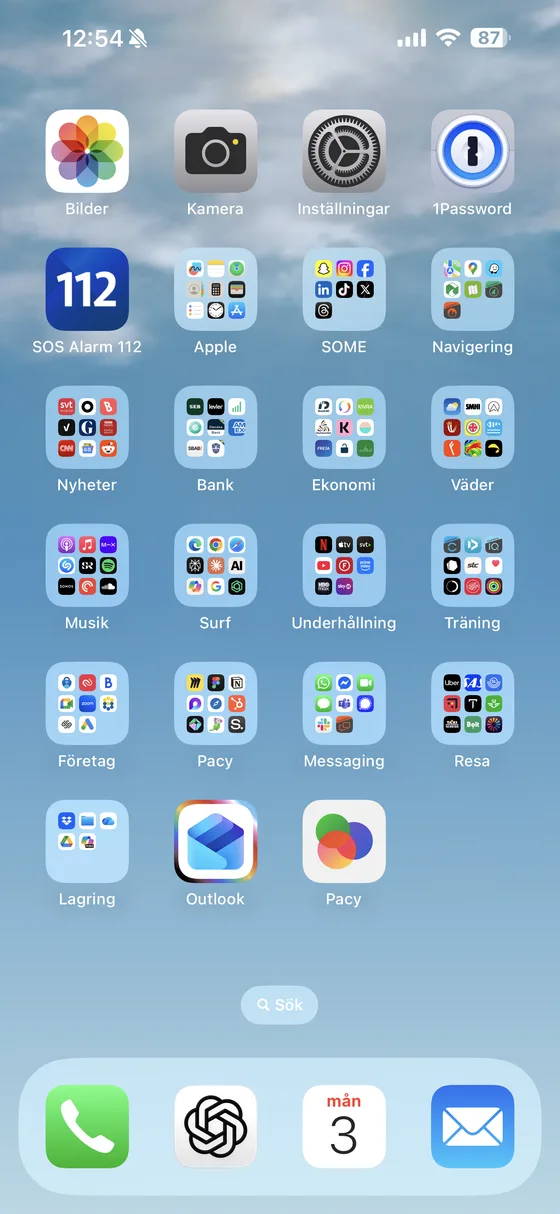
Download Pacy Skill Development by Pacy AB. Once it's installed, you'll find it on your home screen.
3. Open Pacy
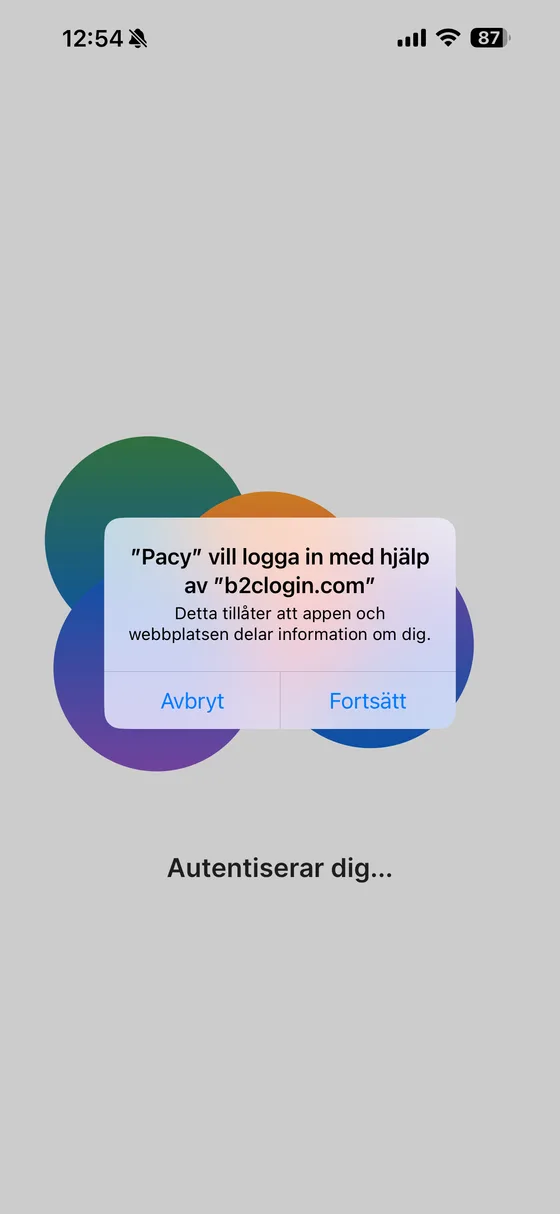
Tap the Pacy icon on your device. When prompted, choose “Continue” to allow the app to sign in using b2clogin.com. This ensures secure authentication.
4. Sign in
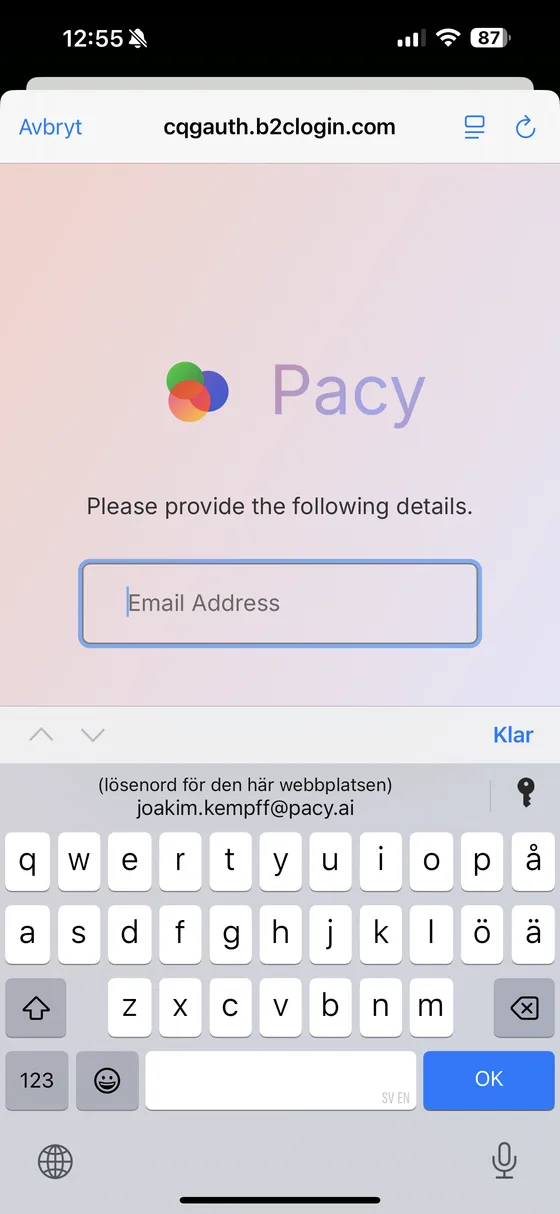
Enter your email address (the one the invitation was sent to) and tap Send verification code. You'll receive a verification code by email—check your spam folder if you can't find it in your inbox.
Copy the code, return to the app, paste it into the verification code field, and tap Verify code. Now you're ready to start your program.
5. Use Pacy on the web (optional)
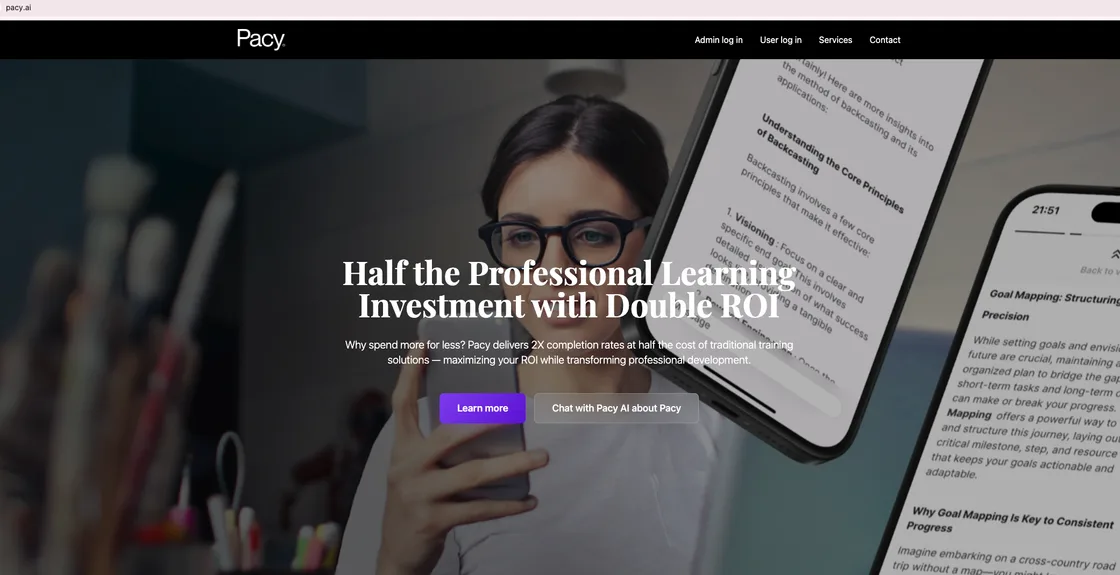
You can also sign in from your computer:
- Go to app.pacy.ai
- Click Log in
- Sign in the same way, with your email address and a verification code
6. Support
If you don't receive your verification email or have trouble signing in, check your spam folder or contact team@pacy.ai for help.
Getting started with a program
Program overview
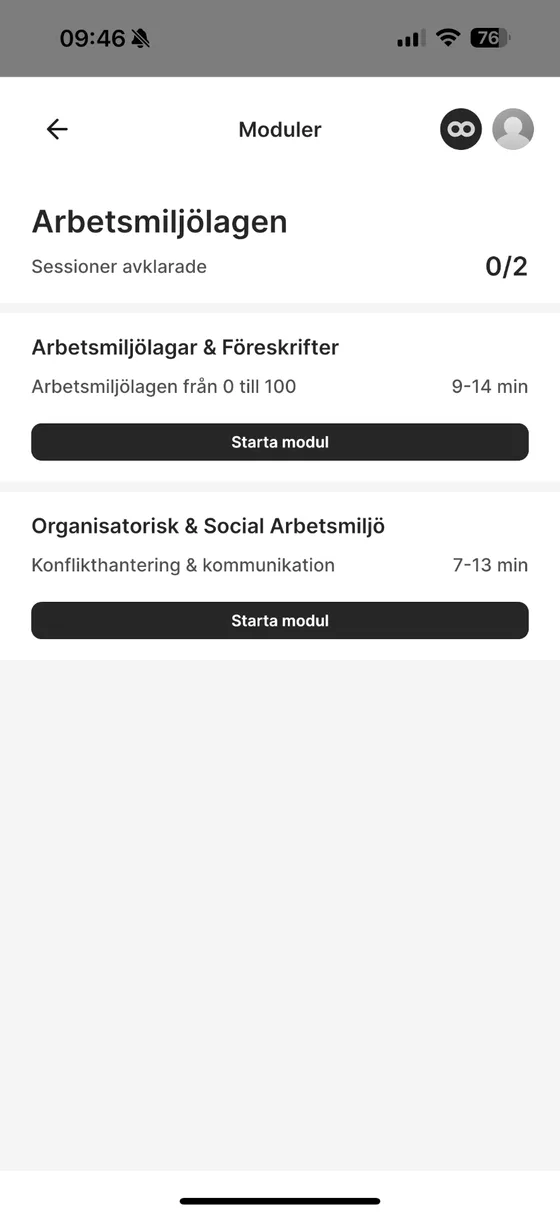
When you open the app, you see an overview of all available programs and modules. Here you can see the name, description, and estimated time for each one. To begin, tap “Start module.”
Your profile
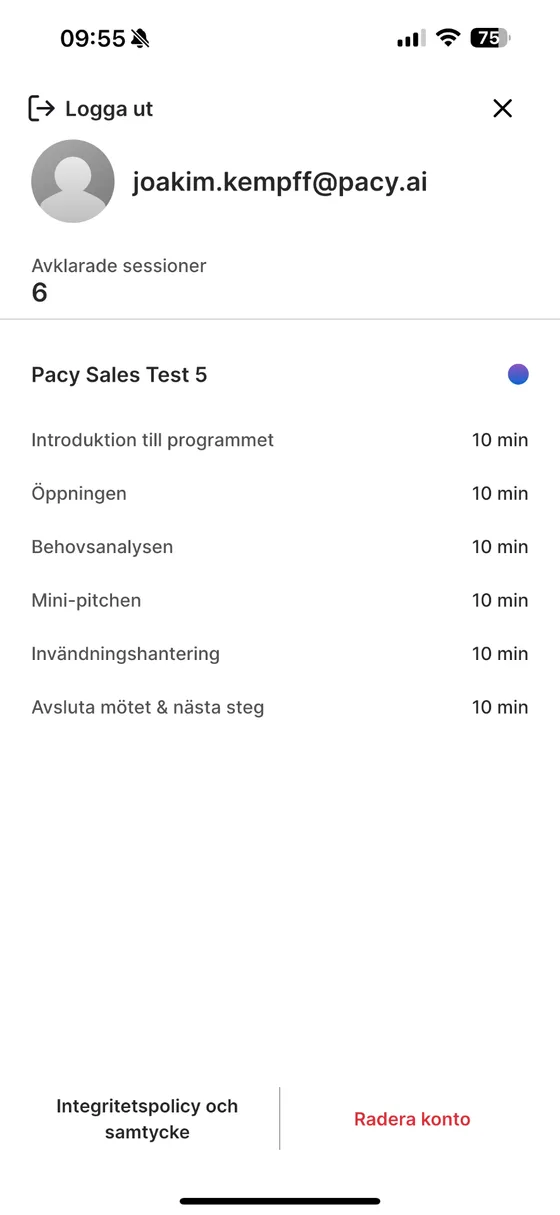
Your profile shows a summary of your progress: how many sessions you've completed and which programs you've gone through. This is also where you manage your account, log out, or delete your profile.
The mentor chat
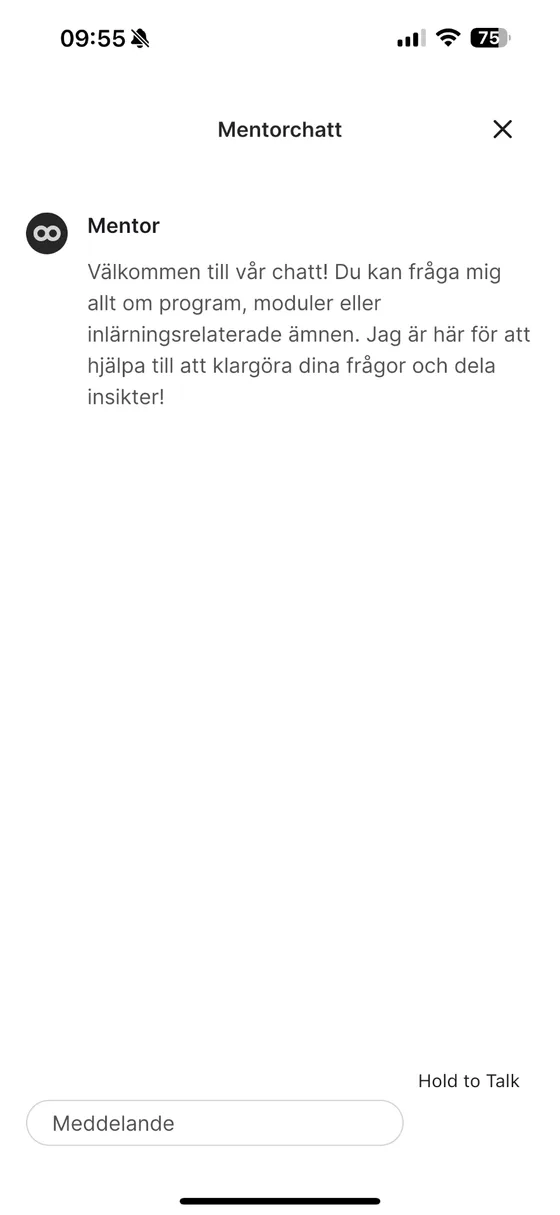
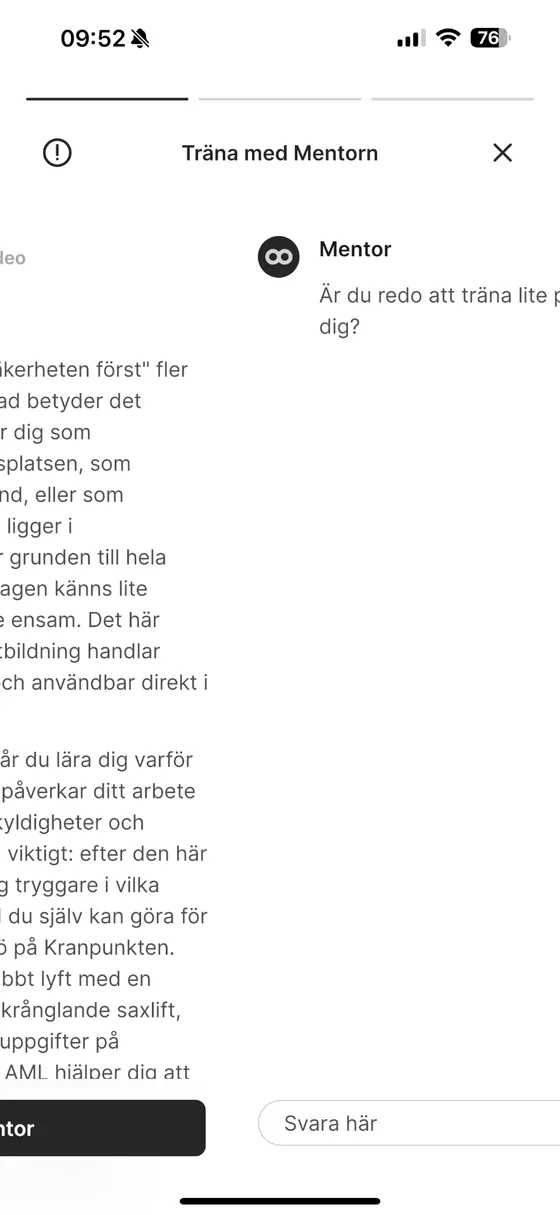
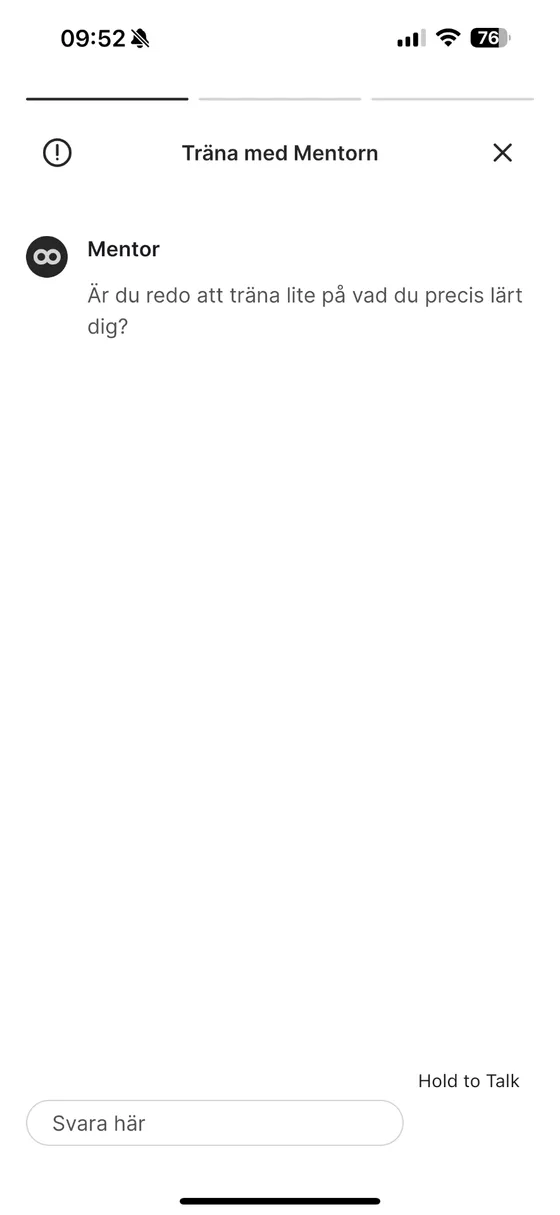
You have access to the mentor chat at any time. There you can ask questions about the programs, individual modules, or the subject in general. The mentor responds directly in the chat, giving you support whenever you need it.
Starting a session
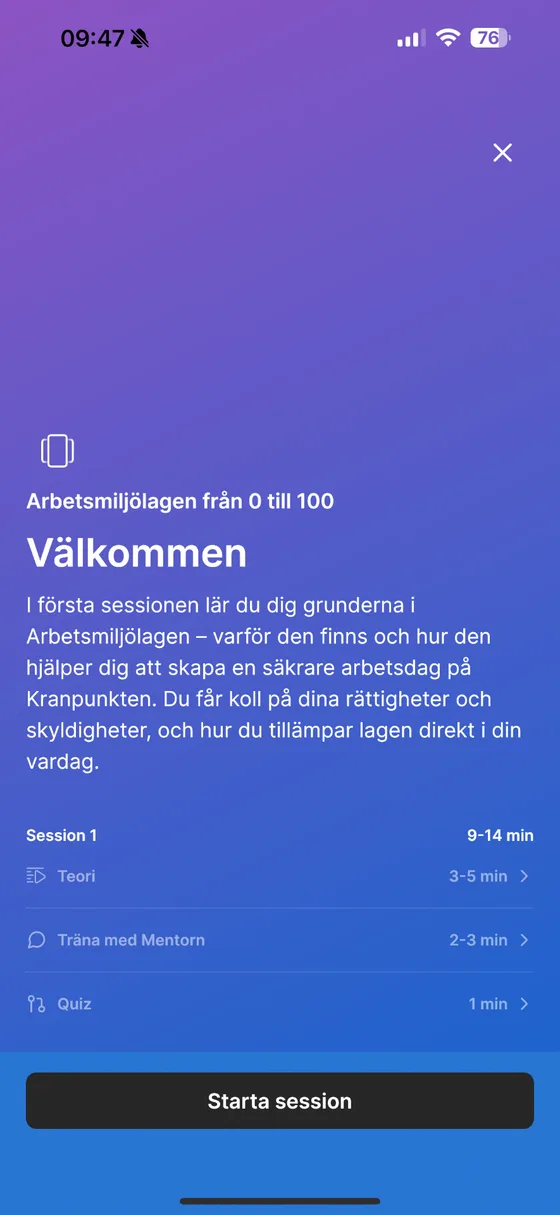
Session introduction
When you select a module, you first see an introduction page. It gives you a clear overview of what the session includes, how long it takes, and the steps you'll go through.
The video lesson begins
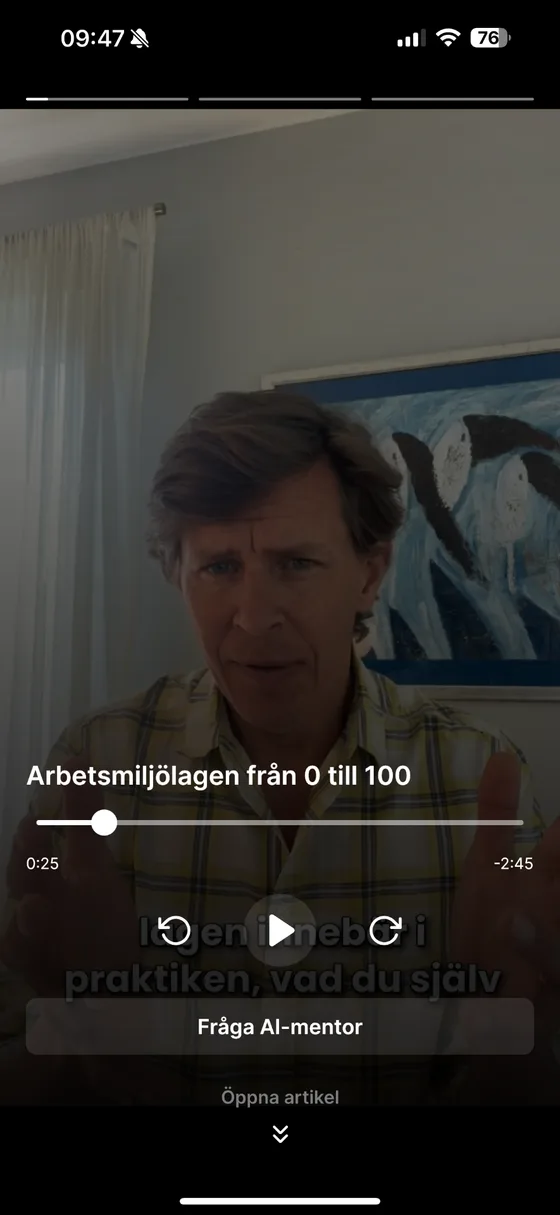
A session usually begins with a video lesson in which the trainer explains the basics and introduces the topic. The video is a first orientation before you move on to practice and interactive exercises.
Switching between video and article
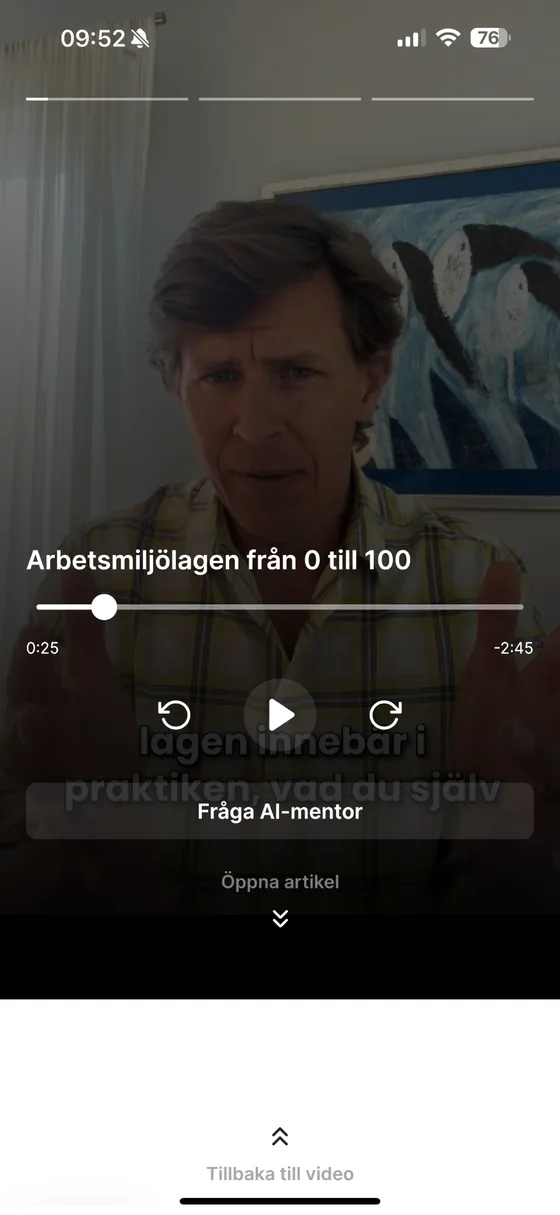
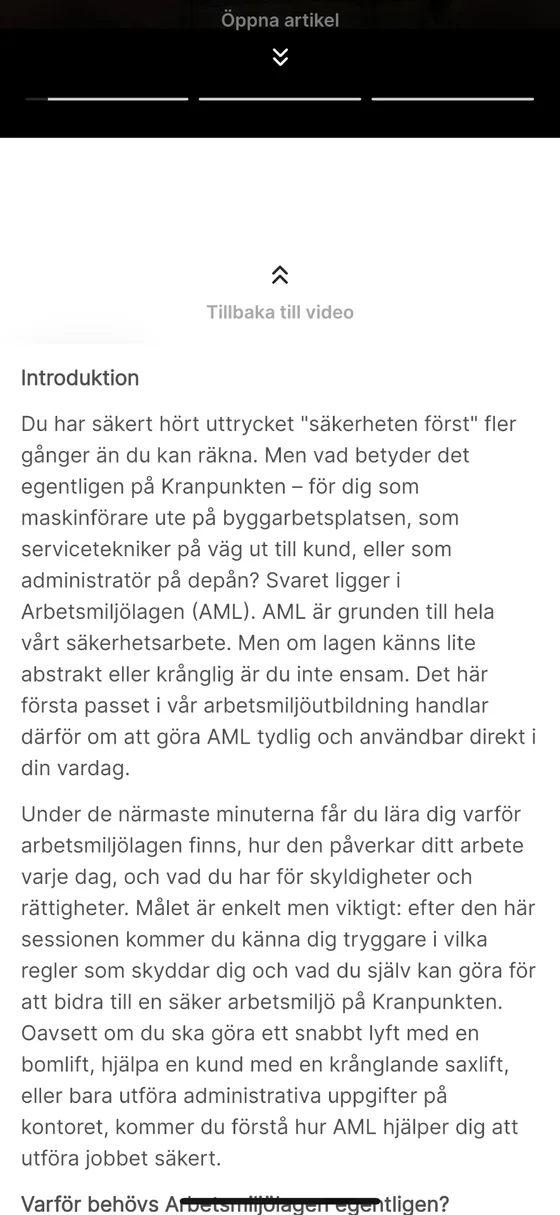
Open the article
While watching the video, you can pause, rewind, or fast-forward to review parts of the content. You can also switch format and read the content instead by tapping “Open article.”
Back to the video
The article view presents the same content as the video, in text form. This lets you work through the material at your own pace, reread important parts, and dive deeper into the examples. From the article, you can always switch back to the video.
Moving between the parts of a session
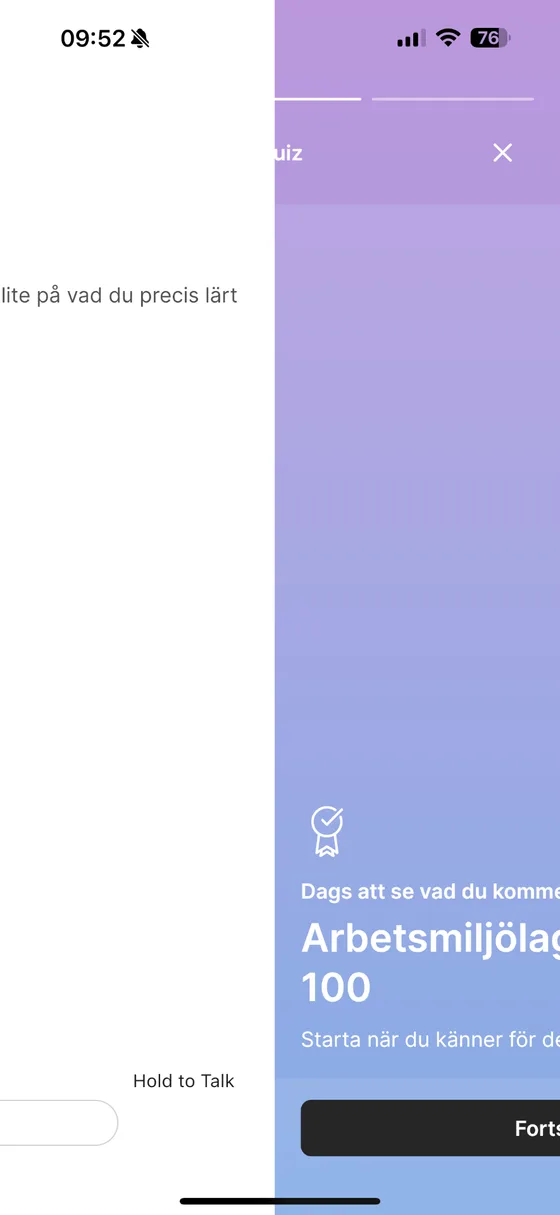
Swipe between the parts
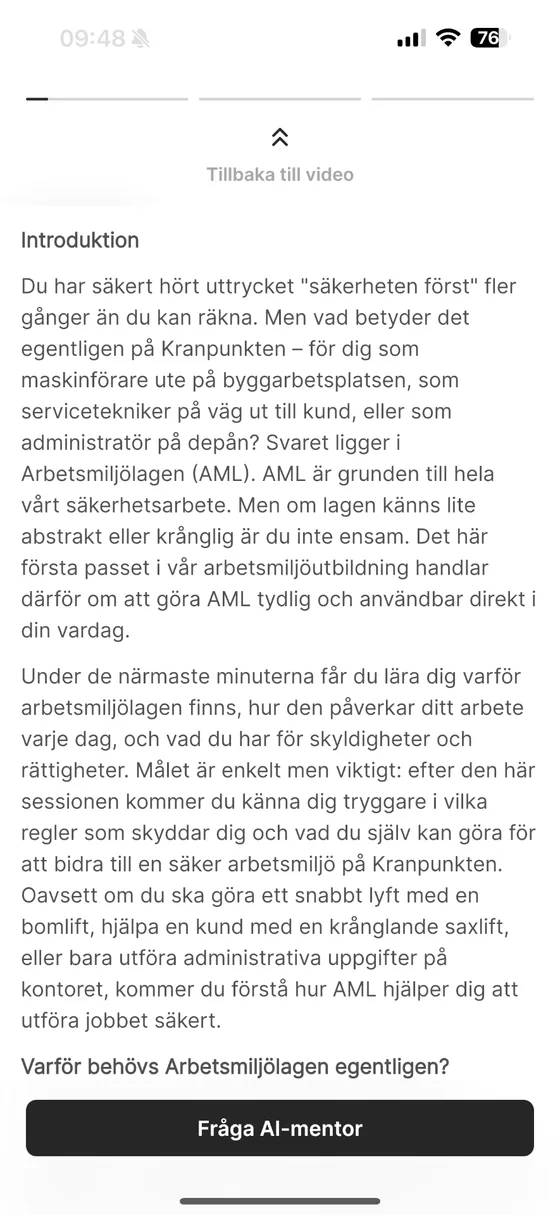
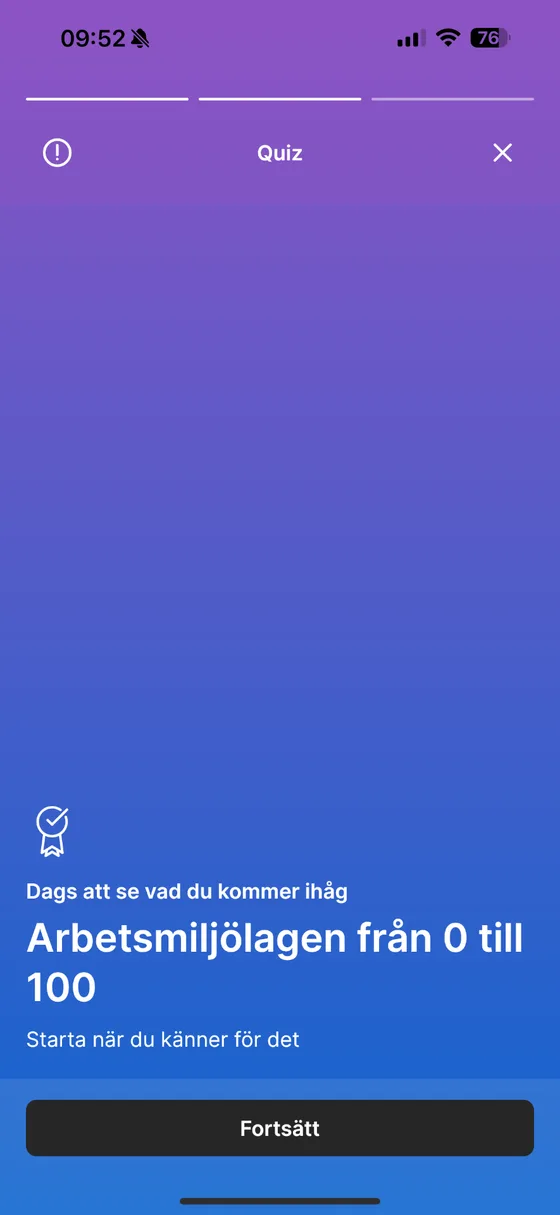
Within a session, you move between the parts by swiping left or right on the screen. Swiping left takes you forward to the next step—for example, from the article to the mentor exercises, or from training to the quiz introduction. Swiping right takes you back to the previous step, so you can review earlier content whenever you need to.
This makes it easy to follow the session in order while still being able to revisit and repeat any part at your own pace. You stay in control of your learning and can make sure each section feels clear before moving on.
Completing a session
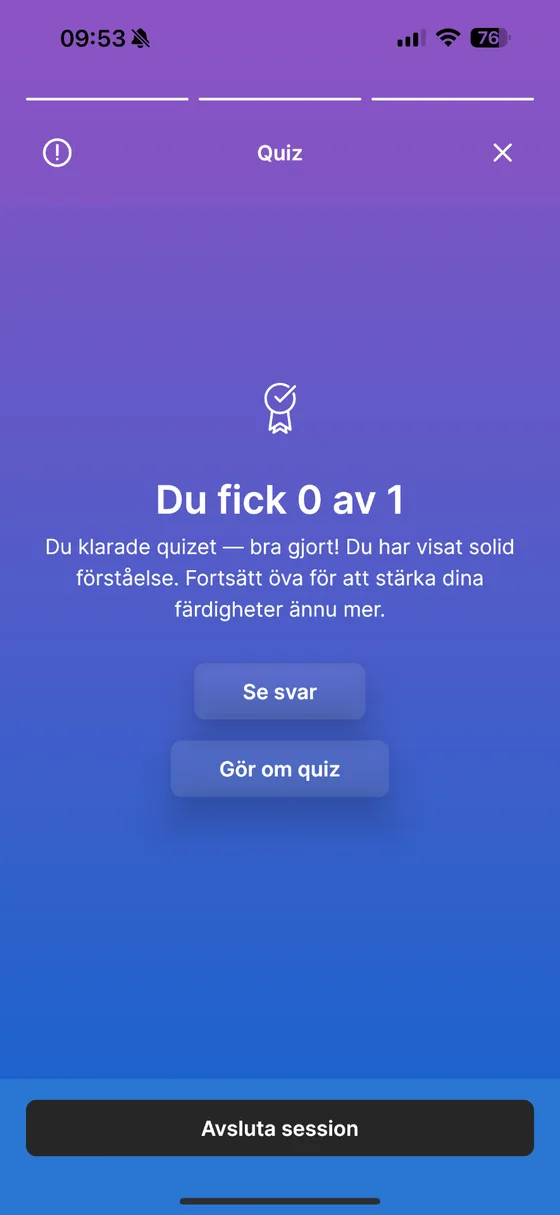
Quiz results
When you finish the quiz, you see your results right away. The results screen shows how many questions you got right and gives you three options: review the correct answers, retake the quiz if you want more practice, or end the session if you feel finished.
Back to the module overview
When you end the session, you return to the module overview. There you can clearly see which sessions you've completed and which ones remain.
Making the most of your AI mentor
How to use the AI mentor
The AI mentor in Pacy is your personal guide throughout the program. It's not just there to answer questions but to help you understand, reflect on, and apply what you learn.
When something feels unclear, ask the mentor to explain, summarize, or give examples. It adapts to you and makes the content easier to grasp. You can also use it to connect theory to your own work and experience, which makes the feedback more relevant and practical.
After each session, the mentor is a good partner for reflection. Discuss how to apply your new knowledge and identify the key takeaways. And since the mentor is always available, you can return anytime with questions or for a quick refresher.
The more you use the mentor, the more personalized and effective your learning becomes.
Ready to begin?
Now that you know how the app works, you can start training today.
Contact support